- 9月 16 週三 201509:39
How to use Wi-Fi Direct in WizFi250
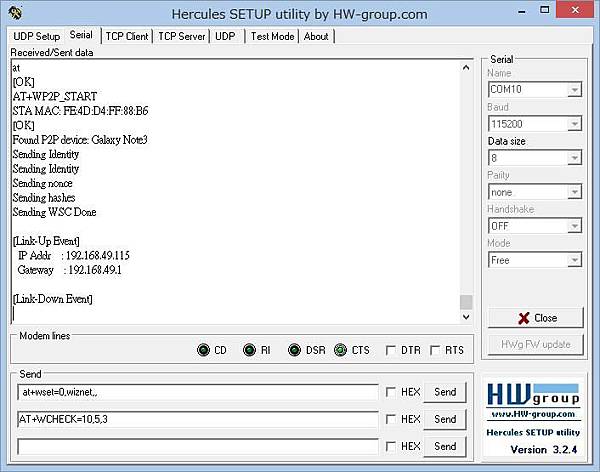
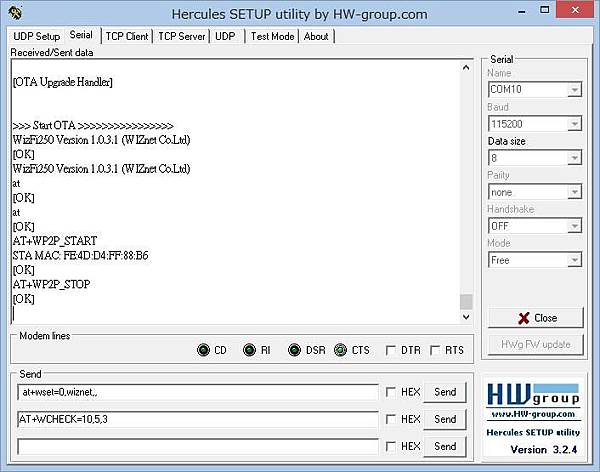
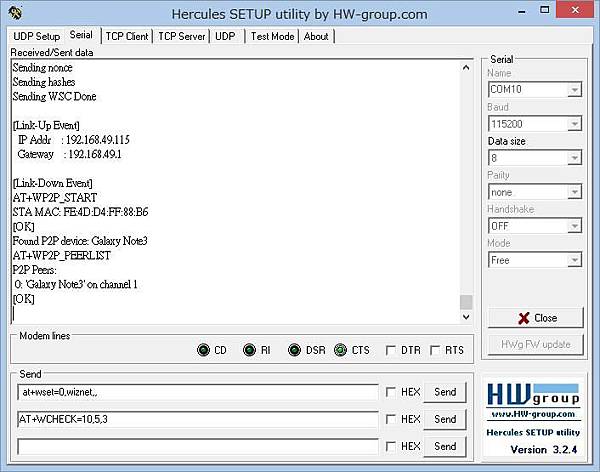
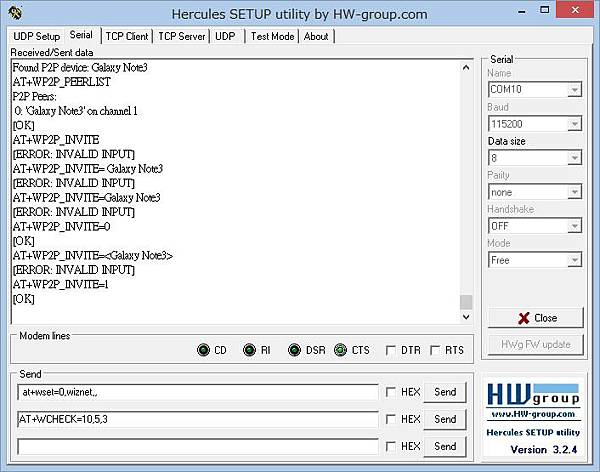
- 4月 16 週四 201513:26
WizFi250 Firmware Upgrade/固件升級
WizFi250 Firmware Upgrade
https://www.youtube.com/watch?v=fpDx31iNDig
How to Upgrade Firmware
Serial Line-APP+DCT
-
1. Download WIZSmartScript from WIZnet homepage and install it
-
2. Run WizFi250 in Boot Mode. (refer to boot pin in the PIN Description)
-
3. Run WIZSmartScript and fill in options(RED) as below. (COM Port should match yours)
And Click the 'Start Script' buton (Yellow).

-
4. Check the log that shows up as below. After 4 seconds, download will be started. First, write the DCT, then write the WizFi250 application firmware. If it is a success step1 message and step2 message. ( execute “02-A. Flash Write(app) if step2 fails )
 ☞ If you want to change firmware binary file, just copy it to 'AppFWFile' folder.
Wi-Fi OTA(Over the Air) - APP
Start OTA mode using AT+FOTA Command
-
1. Turn on OTA mode by entering the command as below.
AT+FOTA [OK]
Start OTA mode using WEB Server
-
1. Run WizFi250 in command mode, and operate the WizFi250 as below.
AT+WLEAVE [OK] AT+FWEBS=1,A [OK] AT+WSET=1,(SSID) [OK] AT+WSEC=1,(EncryptionType),(PreSharedKey) [OK] AT+WNET=0,192.168.0.2,255.255.255.0,192.168.0.2 [OK] AT+WJOIN [OK] [Link-Up Event] IP Addr : 192.168.0.1 Gateway : 192.168.0.1 [OK]
-
2. Connect your PC Wi-Fi to the Wizfi250, open the web browser and enter the IP address of WizFi250 which you can find by using 'AT+WSTAT'
 .
.
-
3. Click the 'Over the Air' icon

-
4. Click the 'Change to OTA mode' button, then WizFi250 will enter OTA mode.

Start OTA mode using FUNCTION pin
-
1. If entered the OTA Mode using FUNCTION pin, you will see messages as below.(Refer toFUNCTION Pin Usage)

Upload newest firmware in OTA mode
-
1. Now you can connect to the WizFi250 OTA Access Point from your PC. Connect your PC WLAN to the AP which the name WIZFI_OTA_(MAC-Address).

-
2. Open the WEB browser and go to 'wizfi250.wiznet.com'. (If the browser failed to find the page, disconnect the other network connections and try again). When successful, it should look like below.
-
3. Click the 'Delete App' button, and wait until internal flash memory is erased.
(Before writing firmware, internal flash must be erased. Otherwise it does not work properly.).

-
4. After erase, click the second button, ‘Choose File’, and select the firmware file you want to upload.
-
5. Click the second button, 'Select file', and choose the FW file you want to upgrade. And finally, click the 'Upgrade' button to start upgrading. ( You have to use APP.bin file. This file is in WIZSmartScript\AppFWFile\Version\APP.bin )

-
6. Wait for a second until upgrade is finished and check if it shows a complete message as below.

-
7. Check if WizFi250 is upgraded and works well.
- 4月 16 週四 201513:12
WizFi250 Quick Start Guide/快速入門指南
WizFi250快速入門指南
WizFi250 Quick Start Guide (Youtube Link)
https://www.youtube.com/watch?v=ZNrBz-HZsUw

-
Overview
WizFi250 offers a quick, easy, and cost-effective way for device and appliance manufacturers to add WiFi capabilities to their products. WizFi250 provides UART and SPI interfaces which enable connections to any embedded design utilizing an 8/16/32-bit microcontroller via simple AT commands. WizFi250 is an ideal solution for organizations with limited or no WiFi or RF expertise, as it not only reduces RF design time but also removes the burden of testing and certification, allowing customers; allowing customers to focus on their core application, product, or expertise. WizFi250 is compliant with 802.11b/g/n.
1
